Using the dashboard
How to get trade and retail valuations on the dashboard
After searching a registration, click Get Valuations in the Vehicle Valuation card on the Pricing tab. You get DP Below, Average, Clean and Retail bands, Trade Poor, Average and Clean, plus Part Exchange, Auction, New and Retail figures. Values come from live and sold listings and refresh hourly.
Step by step
Click "Get Valuations"
The card is on the left of the Pricing tab.
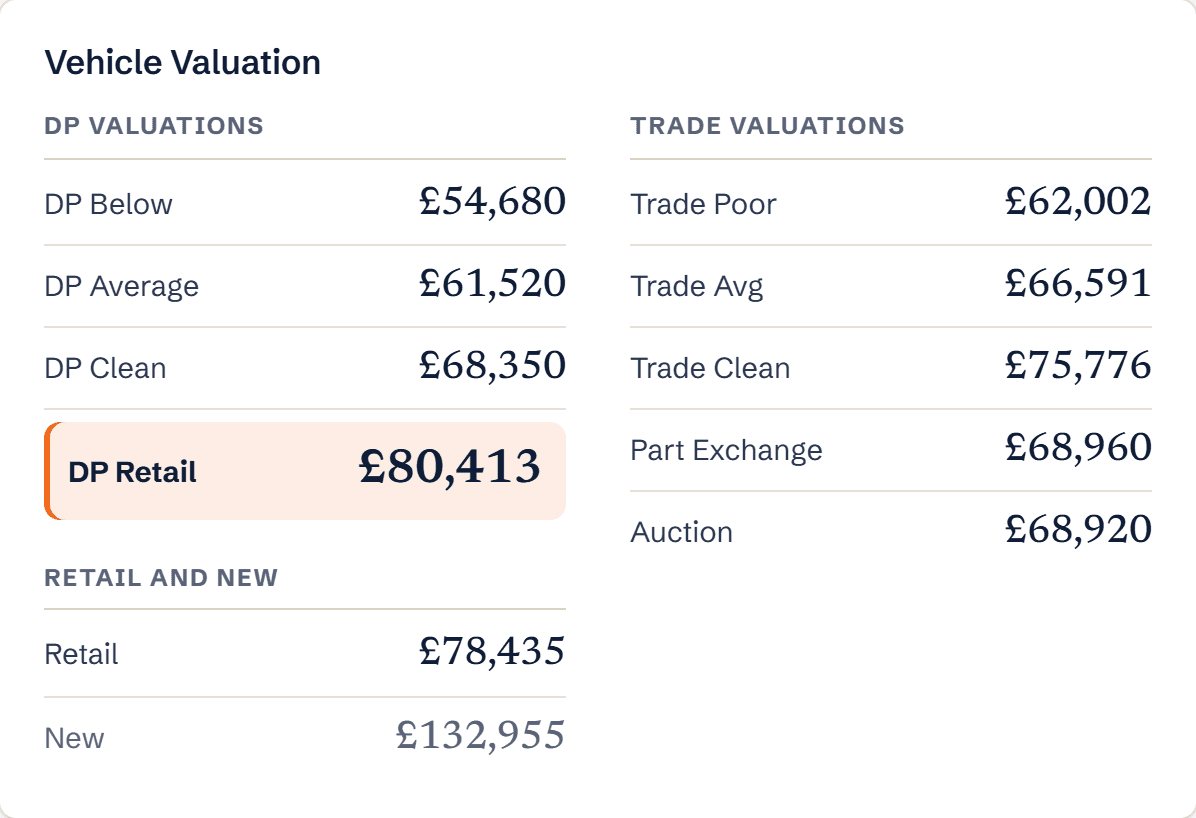
The Vehicle Valuation card Read the bands
Use Trade values when buying, DP Retail and Retail when pricing, and Part Exchange when making a customer an offer.
Feed the calculator
Put the retail figure into the Retail Price Calculator to get your maximum buy price for your target margin.
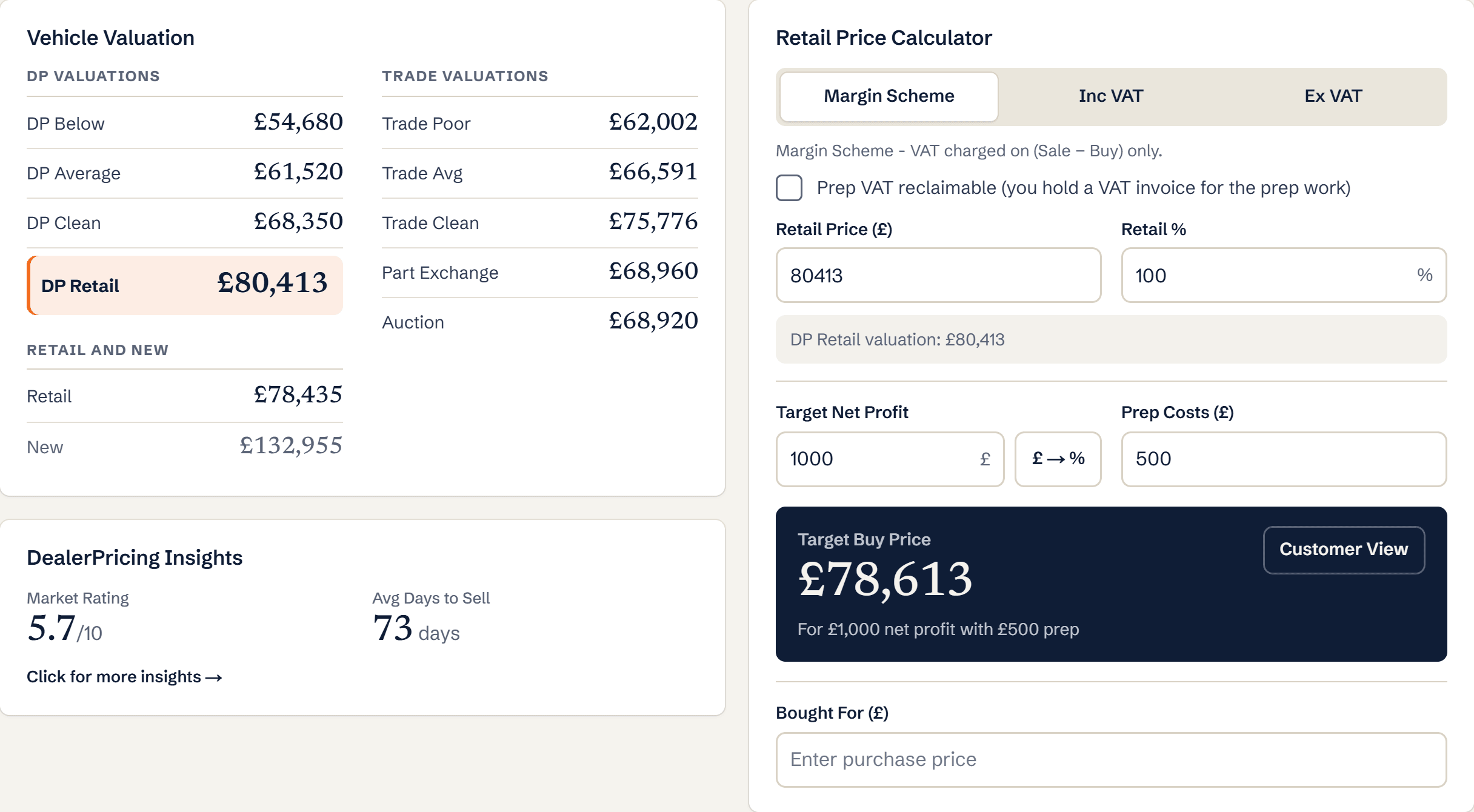
The retail price calculator
What you’ll see
- DP Below, DP Average, DP Clean and DP Retail
- Trade Poor, Trade Average and Trade Clean
- Part Exchange, Auction, New and Retail figures
Ready to try it?
Already a member? Log in and open the dashboard.
Frequently asked questions
How is DP Clean worked out?
DP Clean is 85 percent of DP Retail, DP Average is 90 percent of DP Clean, and DP Below is 80 percent of DP Clean, each rounded to the nearest £10, so the bands move together with the live retail price.
Why does my valuation differ from CAP?
CAP is a monthly guide; DealerPricing values update hourly from live listings and recent sales. In a moving market the two can differ by hundreds of pounds, and the live figure is the one buyers are seeing.