Using the dashboard
How to check a vehicle’s specification on the dashboard
After a VRM search, open the Vehicle Details tab. The decoded identity, VIN, engine, performance and emissions data are shown immediately; Click to check spec loads the standard spec sheet for the trim and the list of optional extras, packs and accessories that were offered for the model, with original list prices. It lists what was available for the model; it does not show which optional extras were fitted to the individual car. Standard spec sheets and the optional extras list are included on Pro plans.
Step by step
Open the Vehicle Details tab
The decoded details, engine and performance figures load automatically.
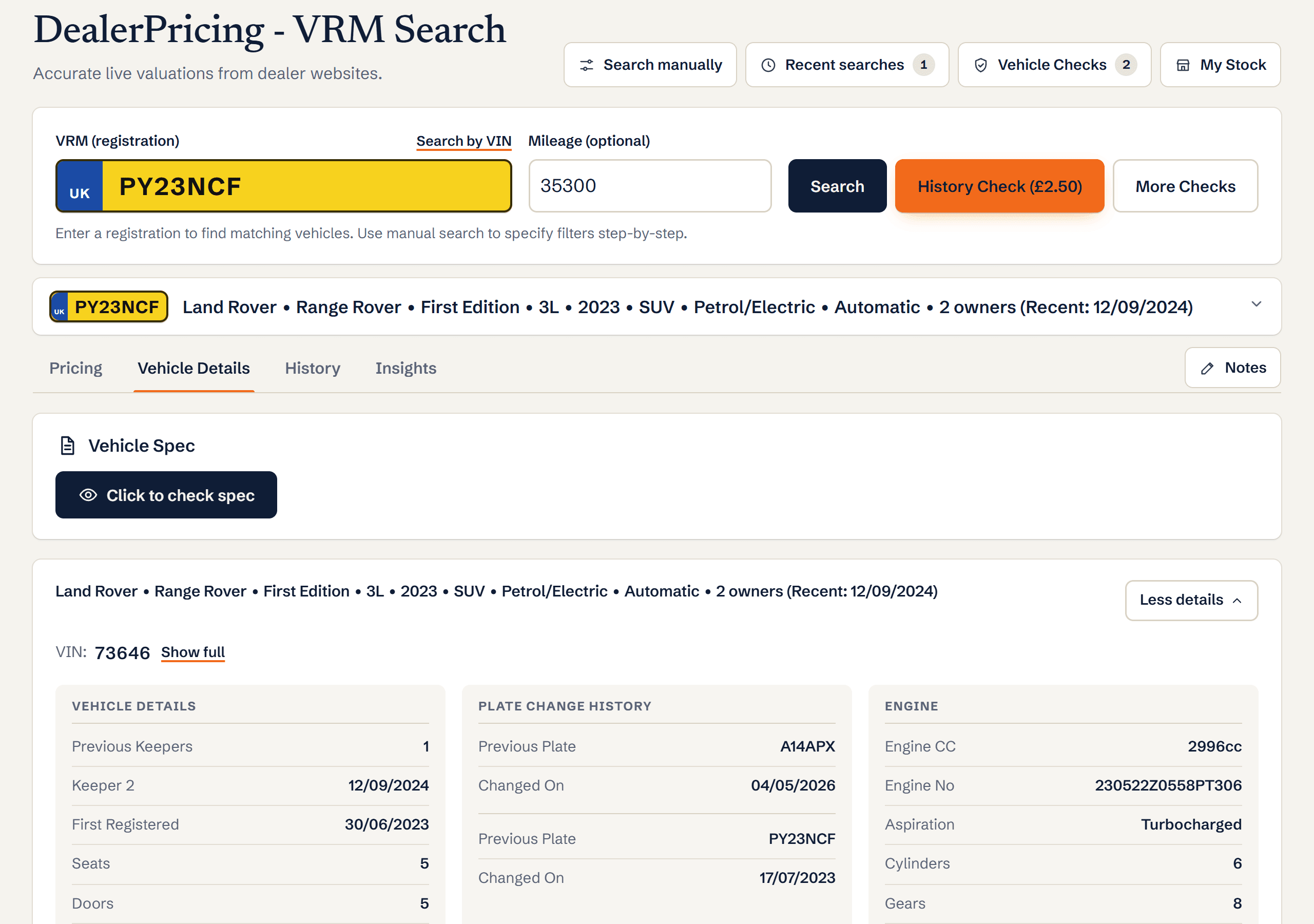
Vehicle Details tab with the Vehicle Spec panel and decoded engine, performance and emissions data Click "Click to check spec"
The standard equipment loads first, followed by the options, packs and accessories that were available for the model.
Compare with the advert or the car
Use the optional extras list as a checklist: confirm on the car which extras it has, then price it against the comparables. The list shows what was offered, not what was fitted.
What you’ll see
- VIN, engine number, series and model years
- Standard equipment for the trim
- Optional extras and packs offered for the model, with original list prices
- BHP, 0-60, MPG, CO2 and Euro status
Ready to try it?
Already a member? Log in and open the dashboard.
Frequently asked questions
Is the spec check available on Basic plans?
Standard spec sheets and the optional extras list are Pro features. The Basic plan shows the decoded identity and the engine, performance and emissions data, with an option to upgrade.
Does it show options fitted by a dealer after registration?
No. It reflects the factory build. Dealer-fitted accessories are not recorded by the manufacturer.