Using the dashboard
How to filter and sort results
Click Adjust Filters above the results to set a mileage band, distance from a postcode, door count, fuel, drivetrain and keywords, exclude write-offs, or switch to sold listings. Year ±1 widens a thin result set. Click any column heading to sort by price, mileage or days listed. Gearbox and drivetrain chips from the decoded car can be removed to broaden the match.
Step by step
Click "Adjust Filters"
Set the mileage band, distance and postcode, doors, fuel and drivetrain. Tick No Write-offs for clean-history stock only.
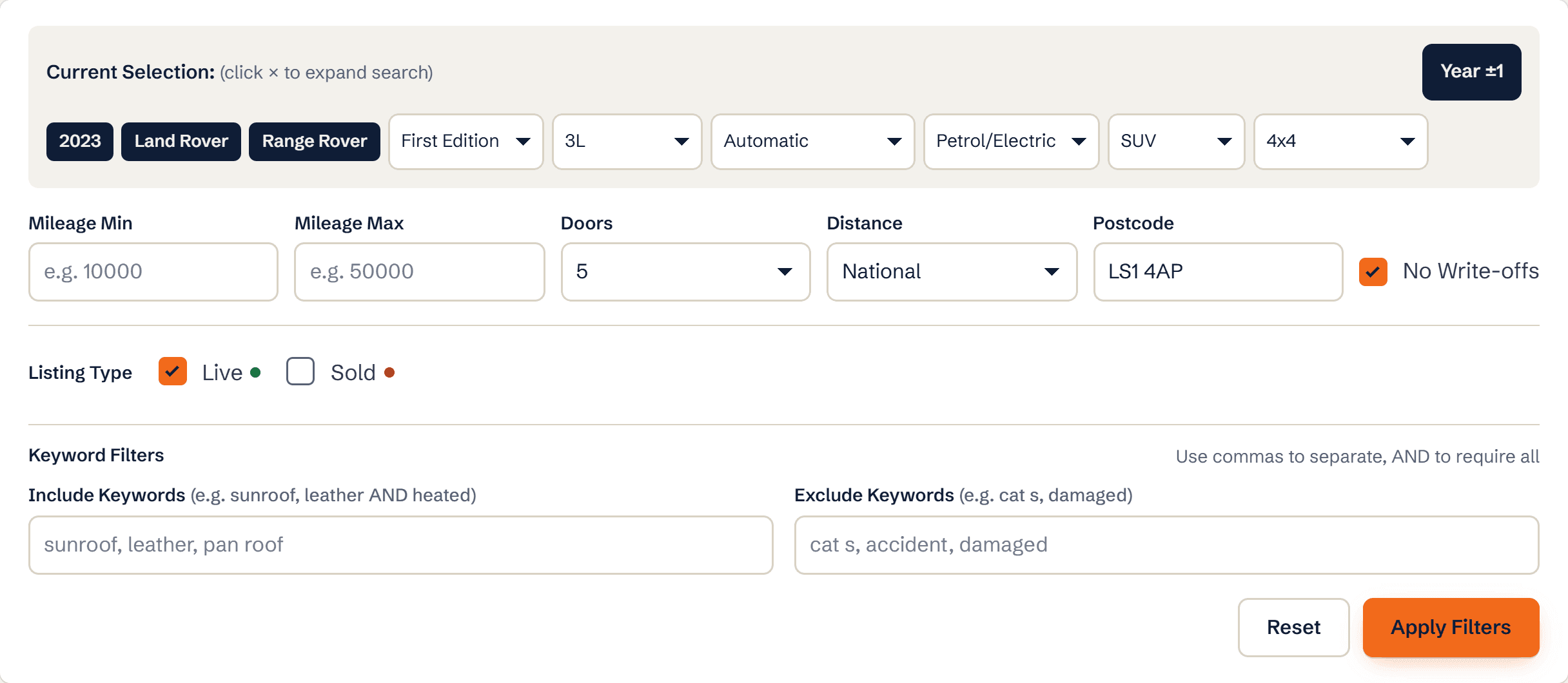
The filters panel Choose live or sold
Listing Type switches between cars for sale now and cars that sold in the last 90 days.
Sort the table
Click a column heading. Days listed is the quickest way to find overpriced stock that is about to be reduced.
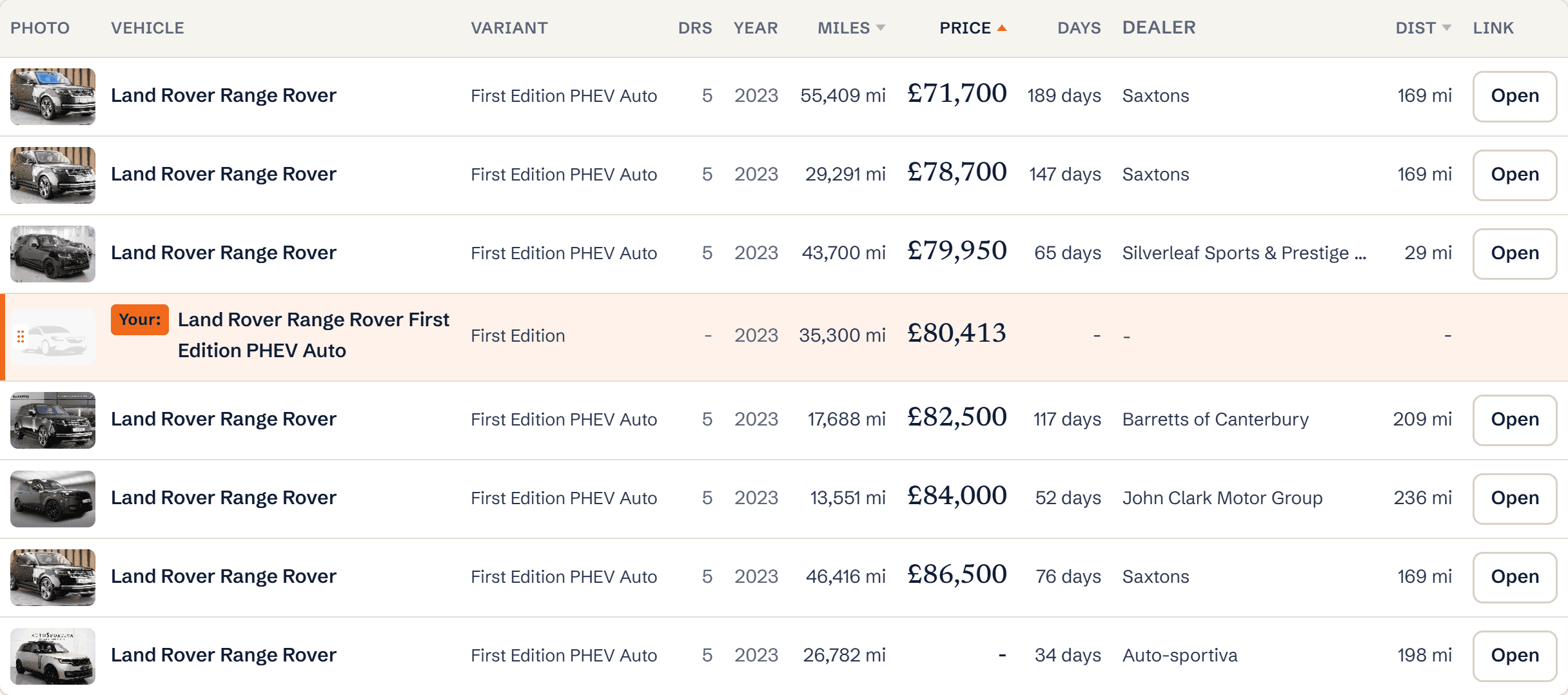
The results table sorted by price
What you’ll see
- A live count of matching listings as you change filters
- Chips for the decoded gearbox and drivetrain, removable in one click
- Distance from your postcode on every row
Ready to try it?
Already a member? Log in and open the dashboard.
Frequently asked questions
Why did the door count change my results?
The doors filter defaults to the searched car’s door count so three-door and five-door versions are not mixed. Set it to Any to see both.
What does Year ±1 do?
It includes cars one year older and newer than the searched car. It is disabled when the result set already has 200 or more listings.