Using the dashboard
How to check tax and MOT history on the dashboard
After a VRM search, the MOT Status card on the Pricing tab shows the last test date, mileage, expiry and whether advisories were recorded. The History tab lists every MOT test with mileage and defects and plots the mileage over time, so a reading that drops stands out immediately.
Step by step
Read the MOT Status card
Test date, mileage, expiry and result. Advisories is a prompt to open the full history before you price the prep.
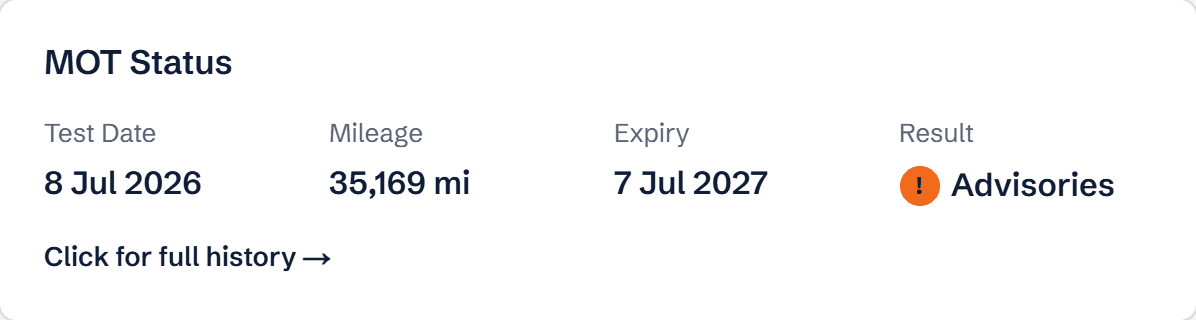
MOT Status card with test date, mileage, expiry and result Open the History tab
Tax & MOT Status shows both due dates, the Mileage History chart plots every MOT reading so a drop stands out, and MOT History expands to every test with its defects.
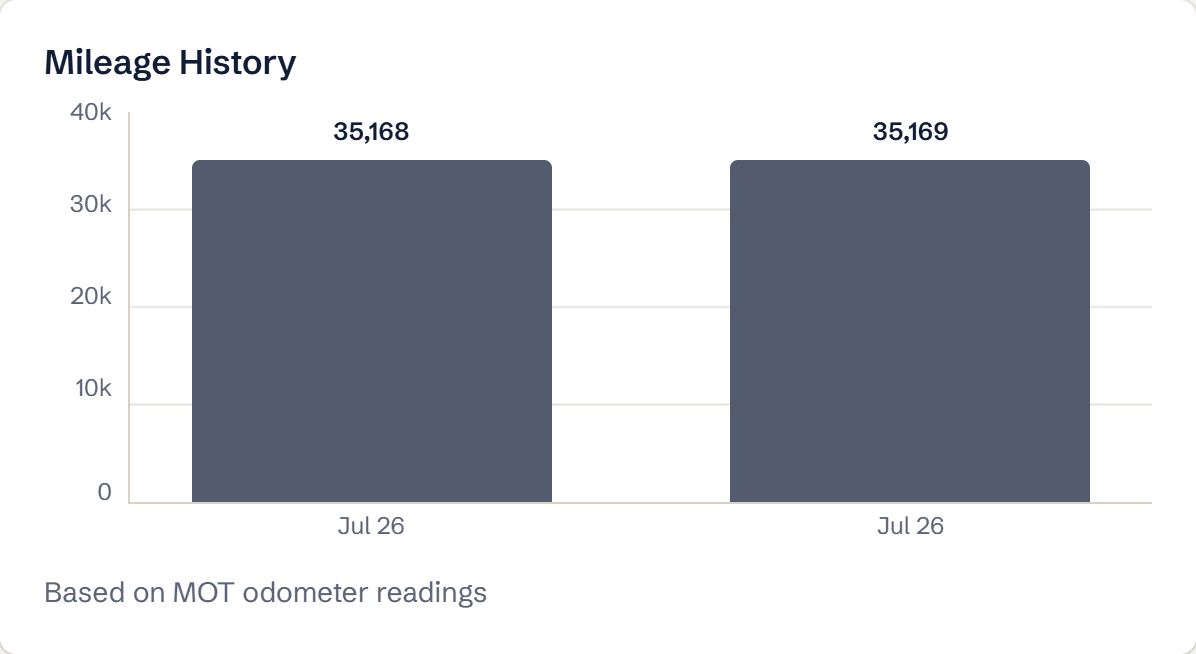
Mileage History chart built from MOT odometer readings Expand MOT History
Each test shows the date, result, mileage and every advisory or failure in the tester’s words.
What you’ll see
- Tax status and due date
- MOT expiry and last result
- Every MOT test with mileage, advisories and failures
- A mileage-over-time chart
Ready to try it?
Already a member? Log in and open the dashboard.
Frequently asked questions
Is this the same data as the free MOT check?
Yes, from the DVSA and DVLA. The dashboard adds the mileage chart and shows it next to the valuation and listings so you can price prep and risk together.
What should I do if the mileage drops between tests?
Treat it as a mileage discrepancy until proven otherwise. Run a history check, ask for service invoices, and price the car as high-mileage or walk away.